
A portable fan not working does not always mean it needs to be replaced. Sometimes the problem is outside the fan itself, such as a drained battery, a charging cable that is not delivering power, or an unstable connection. In other cases, the fan may still show signs of power but fail to produce airflow.
Before trying to fix anything, pay attention to the symptom.
No response at all usually points you toward the power supply first. A working display with no airflow suggests a different problem, while a fan that stops during use should be checked under the conditions in which it shuts down. If the fan runs only when connected to power, compare its plugged-in and battery operation.
Those details can tell you where to start without opening the fan or guessing which internal part may have failed.
Portable Fan Not Working? Start With the Symptom
A completely unresponsive fan should not be checked in exactly the same way as one that turns on but does not move air.
Use these symptoms as a starting point:
- No light, display, sound, or movement: begin with the battery and charging setup.
- The display or indicator works, but there is no airflow: inspect the airflow path and normal controls.
- The fan starts but stops during use: look at the conditions under which it stops.
- It only works while connected to power: compare external-power and battery operation.
Once you know which situation matches your fan, move through the relevant checks below.
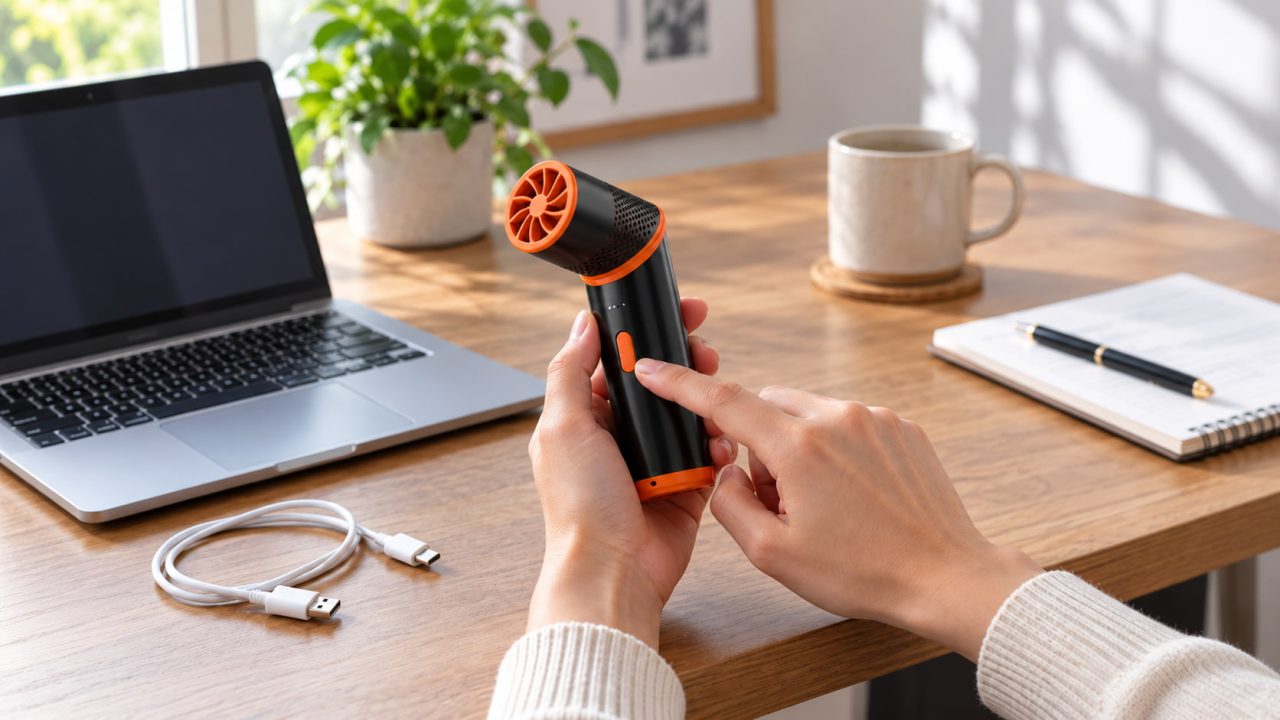
If the Fan Shows No Power
When pressing the power button produces no response at all, start by confirming that the fan has had a proper opportunity to charge. There is little value in assuming a motor or internal component has failed until the basic power connection has been ruled out.
1. Give the Battery Enough Time to Charge
Connect the fan using the charging method recommended for the model and allow it to charge normally.
If the battery has been heavily discharged, plugging it in for only a few minutes may not be enough to tell whether the fan can operate again. Look for the normal charging light, battery icon, or display used by your fan.
If it begins working after charging, the problem may simply have been a depleted battery.
If a rechargeable fan is not working even after a normal charge, check the cable and power source before deciding that the battery itself is faulty.
2. Test the Cable and Power Source
A cable being connected does not necessarily mean power is reaching the fan.
Try another compatible charging cable that you already know works. If there is still no response, test a suitable power source as well.
Change one item at a time. This makes it easier to tell whether the cable, charger, or fan is responsible.
Also check the charging requirements for the specific model rather than assuming that every charger with the correct connector is suitable.
If the main problem is that the fan will not charge at all, WindBillion already covers that troubleshooting path separately. Why Is My Clip-On Fan Not Charging? 6 Things to Check
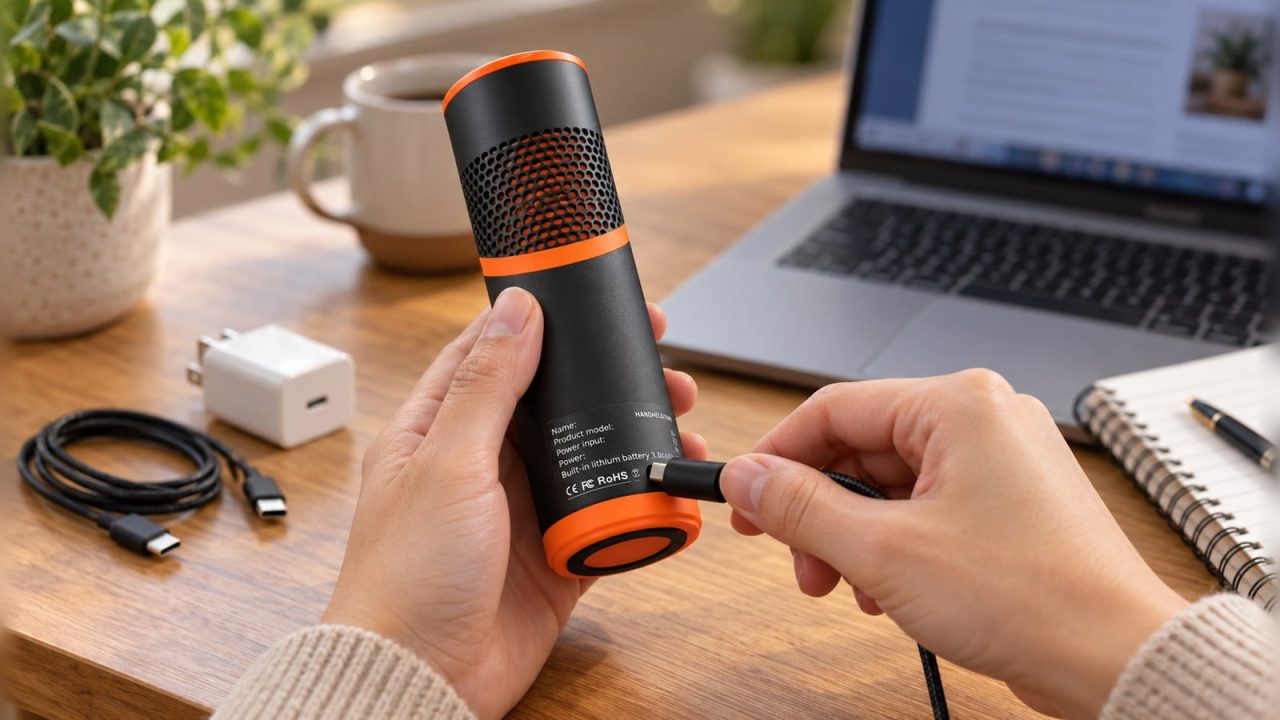
3. Inspect the Charging Port
If the cable and power source appear to work, inspect the charging port under good lighting.
Portable fans are often carried in bags, stored in drawers, or used outdoors, so dust or lint may collect around the connection. Physical damage can also prevent the plug from sitting securely.
Disconnect the fan from power before inspecting the port. Look for visible debris, damage, or a connection that feels noticeably looser than before.
Do not insert pins, needles, or other metal objects into the port. If charging starts and stops whenever the cable moves, avoid forcing the connector into a particular position.
If the Fan Has Power but No Airflow
A light or display that responds is an important clue because the fan is not completely without power. At this point, repeating the same charging tests is less useful. Instead, check whether airflow or normal operation is being interrupted.
4. Check the Air Inlet, Outlet, and Accessible Parts
Turn the fan off before inspecting it.
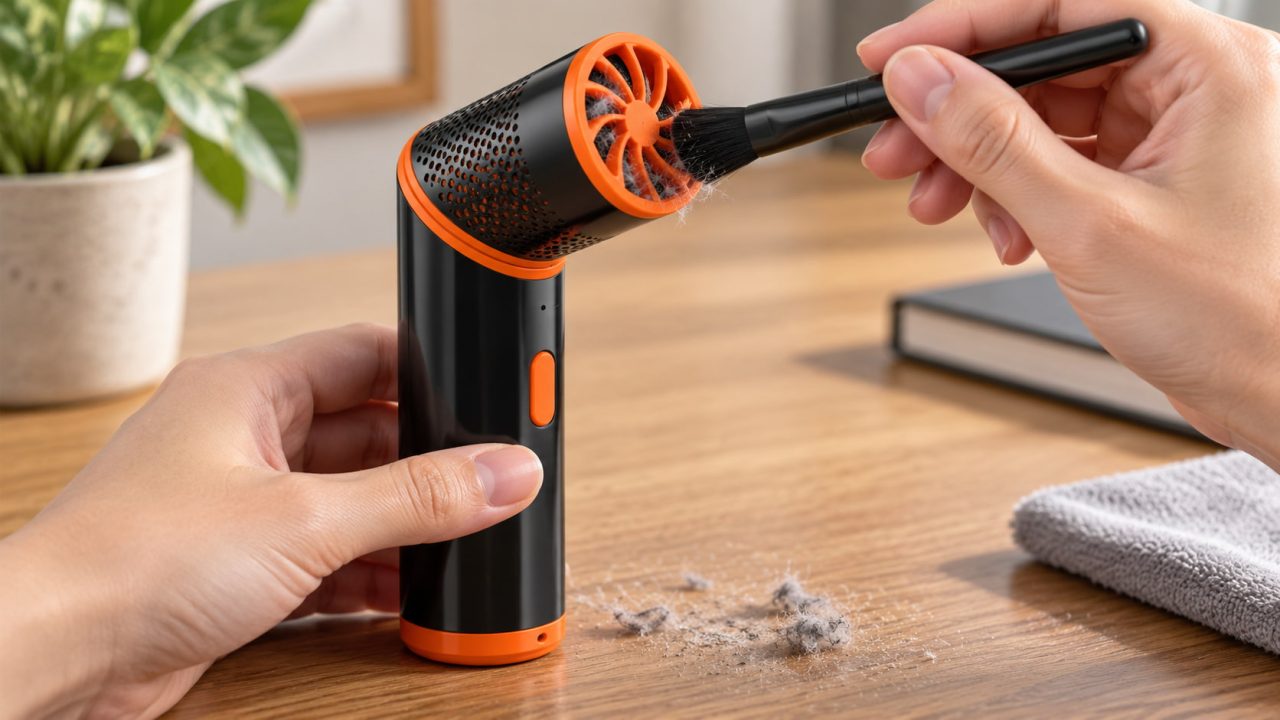
Depending on the design, hair, thread, lint, or accumulated dust may interfere with a grille, visible blade area, air inlet, or outlet. Remove only debris that can be reached safely without dismantling the product.
Do not force the blades to move or remove protective covers unless the product instructions specifically describe those parts as user-removable.
If the fan also develops a new clicking, scraping, grinding, or harsh rattling sound, stop running it rather than trying to push through the problem. WindBillion covers unusual fan sounds separately, so this article does not need to repeat that entire troubleshooting path. Why Is My Fan Making Noise? What Different Sounds Can Tell You
5. Check the Normal Controls for Your Model
Portable fans do not all start or change modes in the same way.
Some use one button for power and speed, while others have separate controls, displays, or additional functions. Follow the instructions for the exact model before assuming that the power button has failed.
Avoid copying reset instructions from another portable fan. A long press or button combination may perform a function on one model and have no purpose on another.
Also notice whether the controls themselves have changed. A button that suddenly feels loose, responds intermittently, or activates the display without starting the fan is useful information if further support is needed.
If the Fan Starts but Does Not Keep Running
A fan that starts successfully has already ruled out some of the possibilities associated with a completely unresponsive device. Now the useful question is when and under what conditions it stops.
This is also where repeated restarting becomes less helpful. Test the fan under ordinary conditions instead of assuming the cause.
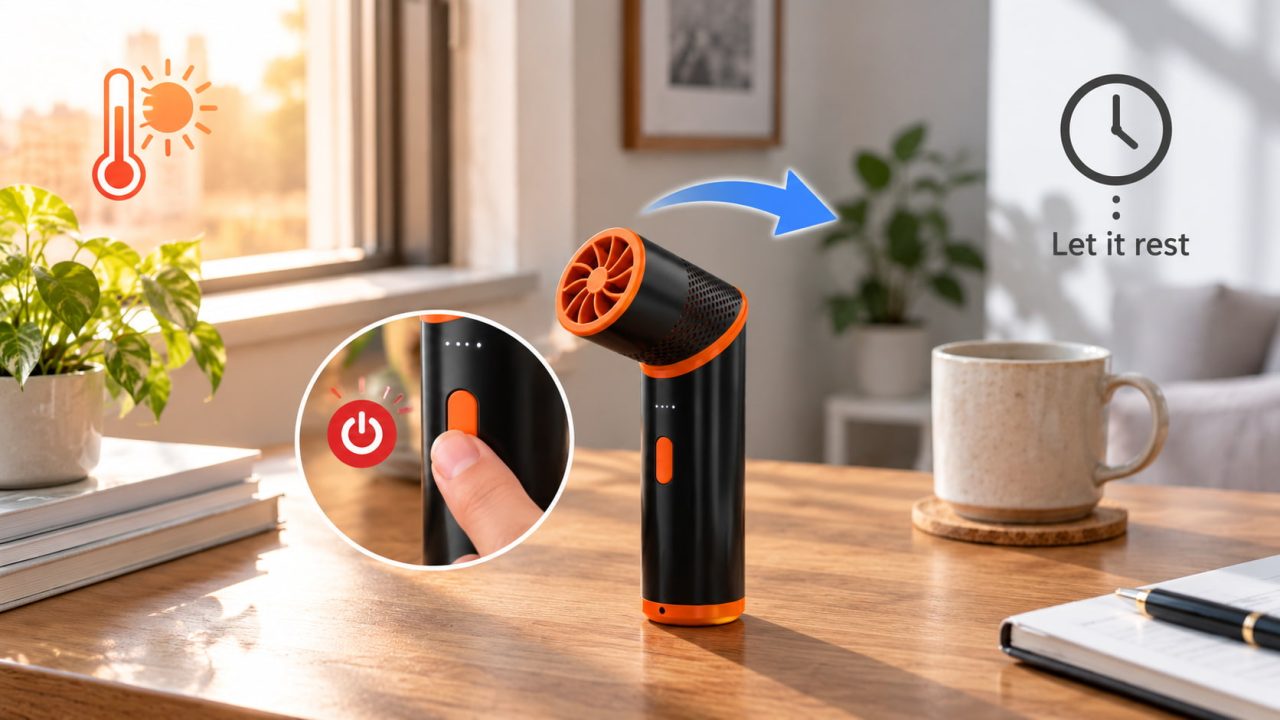
6. Turn It Off, Let It Rest, and Retest
If the fan has been operating for a long time, sitting in direct sunlight, or used in an unusually hot environment, switch it off and disconnect external power.
Move it to a normal indoor or shaded location and allow it to rest before trying again.
This does not mean that every portable fan has an automatic overheating shutoff. Unless that feature is documented for the specific model, there is no reason to assume why the fan stopped.
What matters is whether the same problem keeps returning during normal use.
If the fan repeatedly stops after a short period despite having sufficient charge and a clear airflow path, it may need model-specific support rather than another restart.
7. Compare Battery Operation With External Power
If the fan appears to work only while plugged in, first charge it normally and then test it according to the operating instructions with external power disconnected.
For a model designed for cordless use, shutting off immediately after the cable is removed is useful information. It may indicate that the battery or another part of the internal power system is not operating normally, but this test alone does not prove which component has failed.
Charging and operating behavior varies between models, so check the product instructions before drawing a conclusion.
Do not open a sealed housing simply to inspect an internal lithium-ion battery. The U.S. Consumer Product Safety Commission notes that reported battery and charger hazards in consumer products include overheating, fire, electrical shock, and thermal burns. U.S. Consumer Product Safety Commission
When to Stop Troubleshooting
Basic troubleshooting should stay limited to checks that do not require opening the fan.
Stop using or charging the device if you notice unusual or increasing heat, visible swelling or deformation around the battery area, a burning or chemical smell, liquid inside the fan, serious damage after a drop, or obvious damage around the charging connection.
If the fan still does not work after checking the battery charge, cable, power source, charging port, airflow path, and normal controls, repeatedly trying the same steps is unlikely to reveal anything new.
For a WindBillion fan, note the model name, whether the charging indicator appears, what happens when you press the power button, and whether the problem occurs only during battery operation. If the issue continues, you can contact WindBillion Support with those details so the problem can be checked more efficiently.