
If your clip-on fan is not charging, the battery is not necessarily the problem. First, look at what happens when you connect the fan to power. A fan with no charging response points to a different issue than one that appears to charge but runs for only a short time afterward.
For a clip on fan not charging at all, the first step is to separate a power or connection problem from a battery-runtime problem.
The six things worth checking are the power source, charging cable, charging input, charging port, runtime after charging, and whether the fan still works after external power is removed.
Start with the external charging setup before assuming something has failed inside the fan. If you notice unusual heat, swelling, a burning smell, or visible damage, stop charging rather than continuing with normal troubleshooting.
| What Happens | What It May Tell You | What to Check Next |
|---|---|---|
| No response when connected to power | Power may not be reaching the fan | Power source and cable |
| Charging works only at a certain cable angle | Connection may be unstable | Cable and charging port |
| Fan appears to charge but runs for only a short time | Battery may not be retaining power normally | Compare runtime under similar settings |
| Fan works plugged in but shuts off when unplugged | Battery or internal charging system may need attention | Charge normally, unplug, and retest |
| Fan becomes unusually hot while charging | This is no longer routine troubleshooting | Stop charging |
First, Find Out Whether Power Is Reaching the Fan
If the fan shows no charging response at all, start outside the device.
The first question is simple:
“Is power actually reaching the fan?”
1. Test the Power Source
A charging cable being plugged in does not prove that the power source is working correctly.
If you normally charge the fan from a laptop USB port, power bank, or wall adapter, try another compatible power source that you already know works.
Change only one thing at a time.
For example, keep the same cable and change the power source first. If the fan begins charging normally, the original power source was more likely to be the problem.
This is more useful than changing the charger, cable, and outlet all at once because you can identify what actually fixed the issue.
2. Test Another Charging Cable
If changing the power source makes no difference, test the cable.
A cable can develop internal wear even when there is no obvious damage on the outside. Repeated bending near the connector or pulling the cable sideways can eventually make charging inconsistent.
Try another compatible cable that you know works.
A normal connection should not require you to:
- bend the cable;
- hold the connector at an angle;
- press it sideways;
- repeatedly reconnect it to maintain charging.
If another cable fixes the problem, there is little reason to start investigating the battery.
If charging still cuts in and out when the connector moves, check the port next.
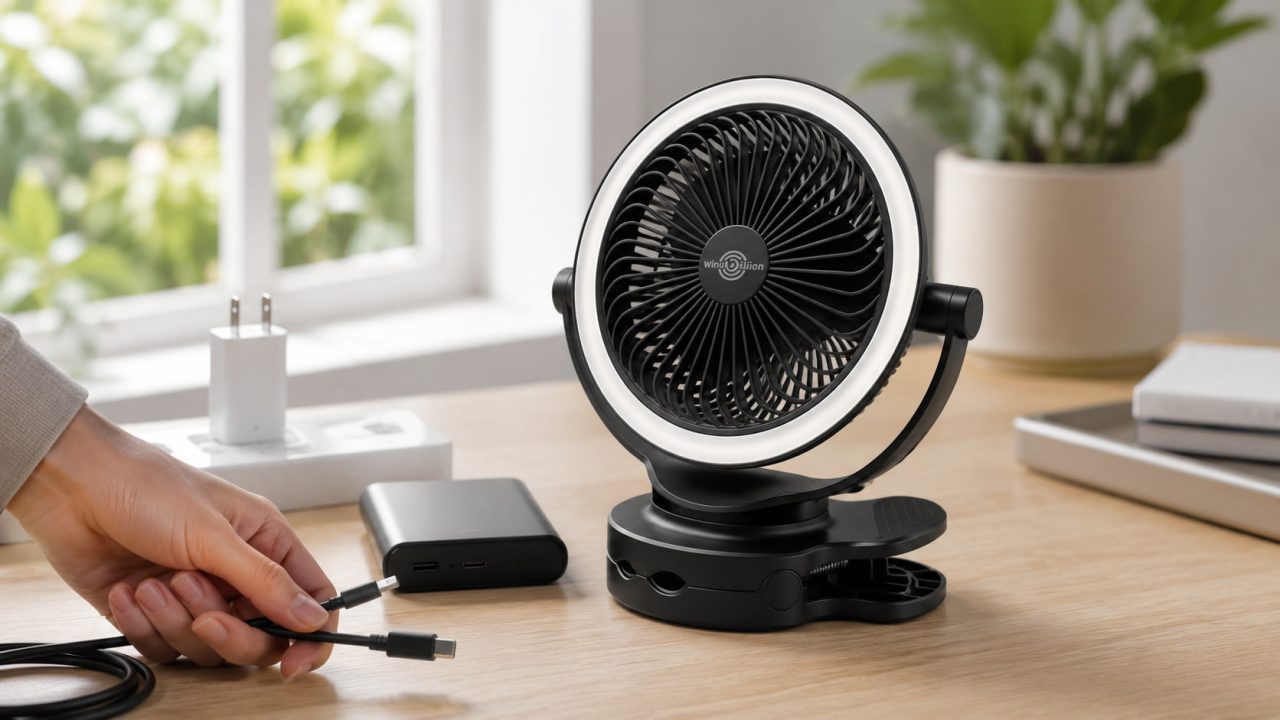
3. Check the Fan’s Charging Requirement
A connector that fits does not automatically mean every power source is suitable.
For example, the WindBillion H9 Clip-on Fan uses a 3.6V 5200mAh rechargeable battery and specifies a DC 5V–2A charging input.
If you are troubleshooting an H9, use a compatible power source that matches that charging requirement.
The point here is not that an incorrect power source is always responsible for charging problems. It is simply one variable that should be ruled out before you assume the battery itself has failed.
4. Inspect the Charging Port
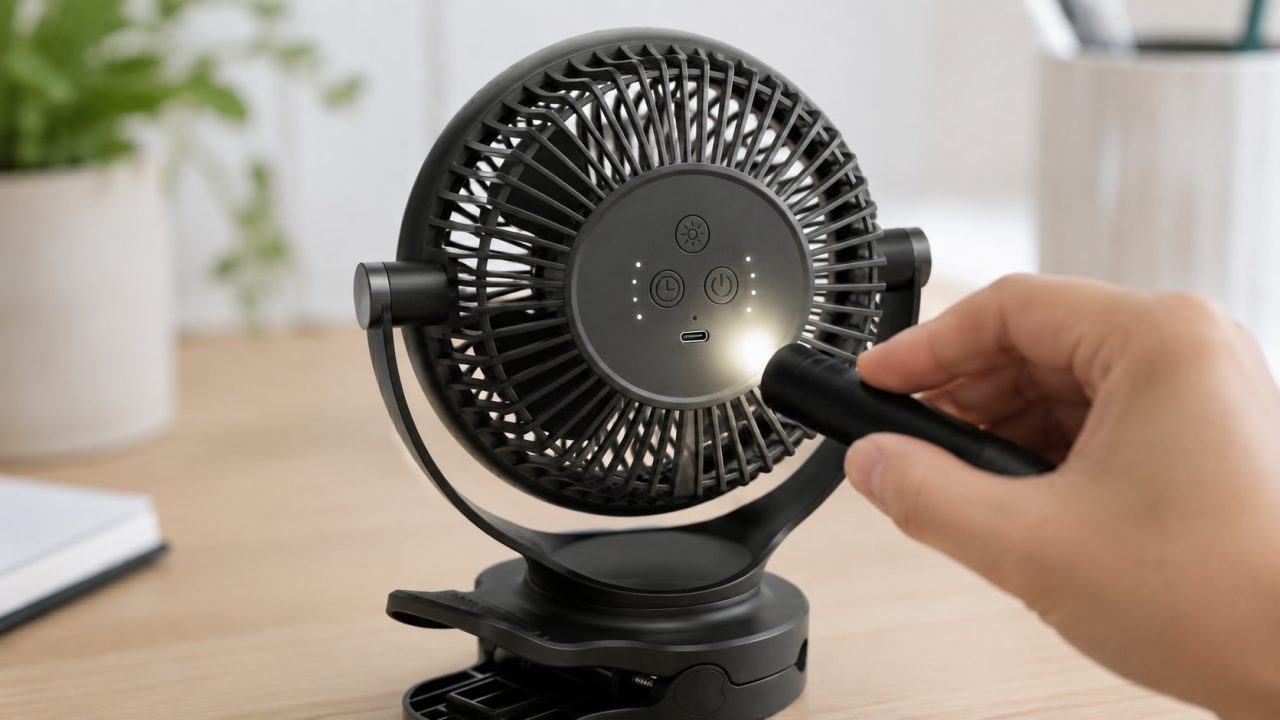
Once you have tested the power source and cable, inspect the charging port under good lighting.
Look for:
- visible debris;
- physical damage;
- a connector that feels unusually loose;
- a plug that no longer sits securely;
- signs that moisture has entered the charging area.
Do not insert needles, pins, screwdrivers, or other metal tools into the port.
If the fan only charges when the connector is pushed in a particular direction, forcing it into position can make an existing connection problem worse.
Keep the charging area dry as well. If moisture has reached the port, do not connect the fan to power until the area is fully dry.
What If the Fan Appears to Charge but Still Dies Quickly?
If the fan shows a normal charging response, the problem may no longer be about whether electricity is reaching the device.
The next question becomes:
Is the battery actually retaining enough power after charging?
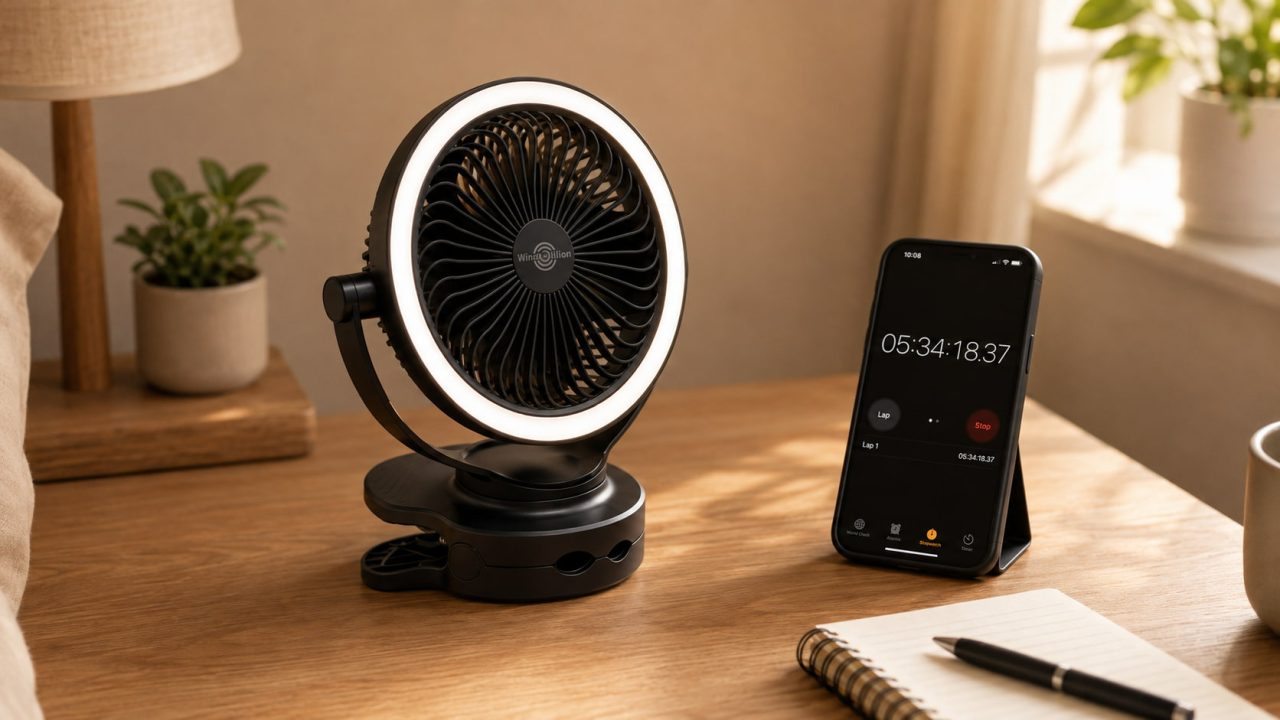
5. Compare Runtime Under Similar Settings
Do not judge battery condition only by comparing your actual runtime with the largest number shown in the specifications.
The H9 has a 5200mAh battery and provides up to 9 hours of runtime on the lowest fan speed with the LED night light turned off.
That does not mean every use should last nine hours.
Higher fan speeds and using the LED light increase power consumption, so actual runtime will be shorter.
A better comparison is:
How long does the fan run now compared with how long it used to run under similar settings?
If you normally use the same speed with the light off and the fan previously ran for several hours, but now shuts down very quickly after charging, that change is more meaningful than simply comparing one session with the maximum advertised runtime.
This helps distinguish a genuine battery-performance change from normal differences caused by settings.
6. Check What Happens After You Unplug It
Another useful test is what happens when external power is removed.
Charge the fan normally with a compatible power source, then unplug it and turn it on.
If the fan:
works while connected → shuts off immediately after being unplugged
the battery may not be retaining charge normally, or the internal charging system may need attention.
This points toward a battery or internal charging issue, but it does not confirm exactly which component has failed.
That is the point where external troubleshooting has largely done its job.
Opening the housing or battery compartment yourself is not the next step.
How Can You Tell Whether It Is the Cable, Port, or Battery?
If you are troubleshooting a clip on fan not charging, use the result of each test to narrow down where the problem is coming from.
| Result After Testing | What It Points Toward |
|---|---|
| Another cable solves the problem | Original cable |
| Another power source solves the problem | Original power source |
| Charging stops when the connector moves | Cable or charging-port connection |
| Charging appears normal, but runtime has dropped sharply under similar settings | Battery or internal system |
| Fan works only while connected to power | Battery retention or internal system |
| No response with a confirmed working cable and compatible power source | Port or internal charging system |
This is why changing one variable at a time matters.
If another cable fixes the problem, replacing or testing the battery is unnecessary.
If confirmed working cables and a compatible power source make no difference, the issue is more likely to be at the charging port or inside the device.
And if the fan appears to charge normally but cannot retain power, the external charging setup is less likely to be the main problem.
When Should You Stop Troubleshooting?
A charging problem stops being a normal cable-and-port issue when there are signs of physical or battery damage.
Stop charging or using the fan if you notice:
- unusual or increasing heat;
- visible swelling;
- a burning or unusual chemical smell;
- liquid inside the charging area;
- serious physical damage;
- a badly damaged charging port;
- abnormal behavior that continues while charging.
Rechargeable lithium-ion batteries can present overheating and fire risks when damaged or defective. The U.S. Consumer Product Safety Commission provides guidance on high-energy battery hazards, including overheating, fire, and other battery-related safety concerns.
Do not continue charging an unusually hot or swollen device just to see whether it starts working again.
If you have already confirmed:
working power source → working cable → correct charging requirement → normal connection
and the fan still will not charge or retain power, contact product support rather than opening the housing and attempting to repair the battery or charging circuit yourself.
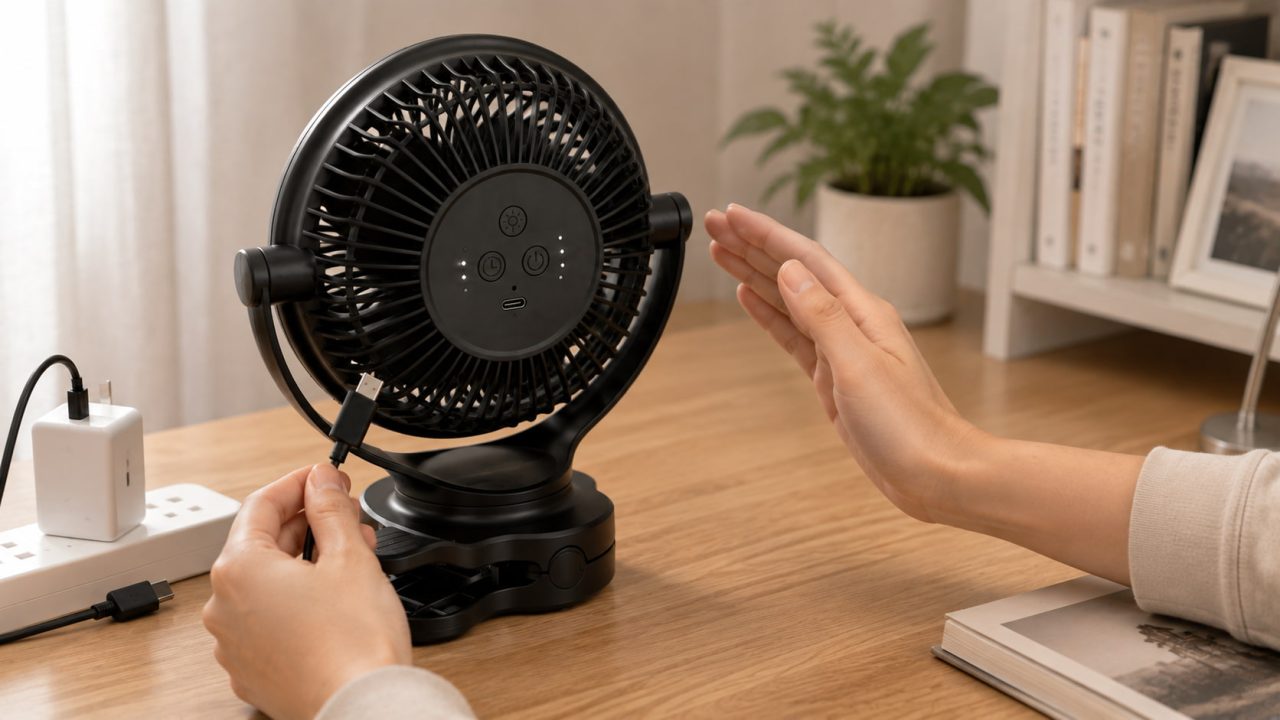
A Few Habits That Can Reduce Charging Problems
Keep the charging port dry and avoid pulling the cable sideways while it is connected.
Disconnect the cable by holding the connector rather than repeatedly tugging on the wire.
Use a power source that matches the fan’s charging requirement, and check the cable if charging suddenly becomes inconsistent.
If the fan has been stored for a long time, test its charging and battery performance before you actually need it for a trip, dorm room, bedside setup, or camping weekend.
These habits cannot prevent every battery problem, but they can help you catch connection issues earlier.
FAQ
Why does my clip-on fan charge only at a certain angle?
If you have a clip on fan not charging consistently unless the cable is held at a certain angle, the connection may be unstable. Test another compatible cable first. If the same thing happens with another known-working cable, the charging port may need further attention. Avoid bending or forcing the connector to keep the fan charging.
Why does my fan show charging but die quickly?
That may be a battery-runtime issue rather than a failure to receive power. Compare how long the fan now runs with its previous runtime under similar speed and lighting settings. A noticeable change under the same conditions is more useful than comparing one session with the maximum advertised runtime.
Why does my clip-on fan work plugged in but not unplugged?
Charge the fan normally with a compatible power source, then unplug it and test it again. If it still shuts off immediately, the battery may not be retaining charge normally or the internal charging system may need attention.
Does Shorter Runtime Mean My Clip-On Fan Battery Is Failing?
Not necessarily. Runtime changes with fan speed, lighting, and other operating conditions.
For example, the WindBillion H9 is rated for up to 9 hours only on the lowest fan speed with the LED light turned off. Higher speeds or using the light shorten runtime.
Compare current performance with how the same fan behaved under similar settings before assuming the battery is failing.
Can I Use Another Charger With the H9?
The H9 specifies a DC 5V–2A charging input. Use a compatible power source that meets the product’s stated charging requirement rather than assuming every available charger is appropriate.